Before you start
- You need an existing ZIP made with Export All Health Data in Apple’s Health app, and an iPhone running iOS 17 or later.
- Keep a safe copy of the original export. Do not erase your old phone or delete your existing Health history just to use Restore.
- Scan and preview are free. Writing records to Health requires the one-time Full Restore purchase (USD 9.99 in the US). Apple’s purchase sheet shows your local price before you confirm.
- Only eligible records can be restored. Apple restricts which data types and dates apps can write.
No export, no restore. The app cannot recover deleted data absent from your ZIP, create backups, or extract an iCloud or device backup.
The screenshots below are actual app screens in English with synthetic example data. Results vary by export and permissions. Select an image to view it at full size.
Step 01
Save the Health export to Files
If you already have your export ZIP, save it in Files on the iPhone you want to restore to and continue to step 2.
- On the iPhone that still has your history, open the Health app, tap Summary, then tap your profile picture or initials.
- Choose Export All Health Data and confirm the export. Large histories may take some time to prepare.
- From the share sheet, choose Save to Files. If you are moving to another iPhone, transfer the ZIP there using a method you trust, such as AirDrop or your own iCloud Drive, and save it in Files.
Keep the ZIP zipped. Select the archive in Restore, not an extracted folder or XML file. If it is stored in iCloud Drive, make sure the file has downloaded to your iPhone first.
The archive contains sensitive health information. Store it securely and do not post it publicly or attach it to a support request.
Step 02
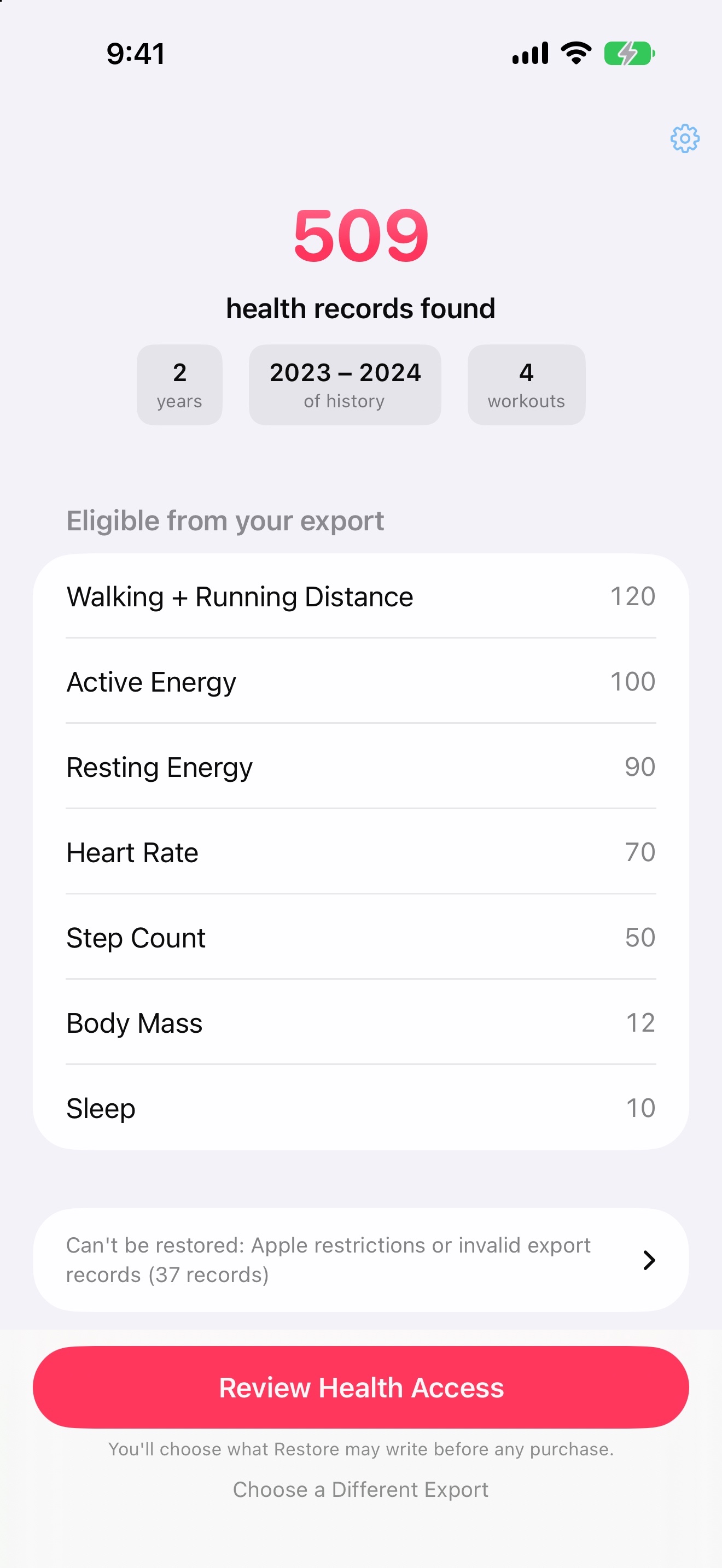
Scan your file for free
Open Health Data Restore, tap Choose Your Export, and select the ZIP from Files. Leave the app open while it scans.
Review the dates, record counts and data types in the preview. Scanning does not write records to Health and does not require a purchase. Unsupported or invalid records are identified before you proceed.
Step 03
Review Health access and choose your dates
Tap Review Health Access and allow write access for the types you want to restore. Read access helps the app look for overlapping history.
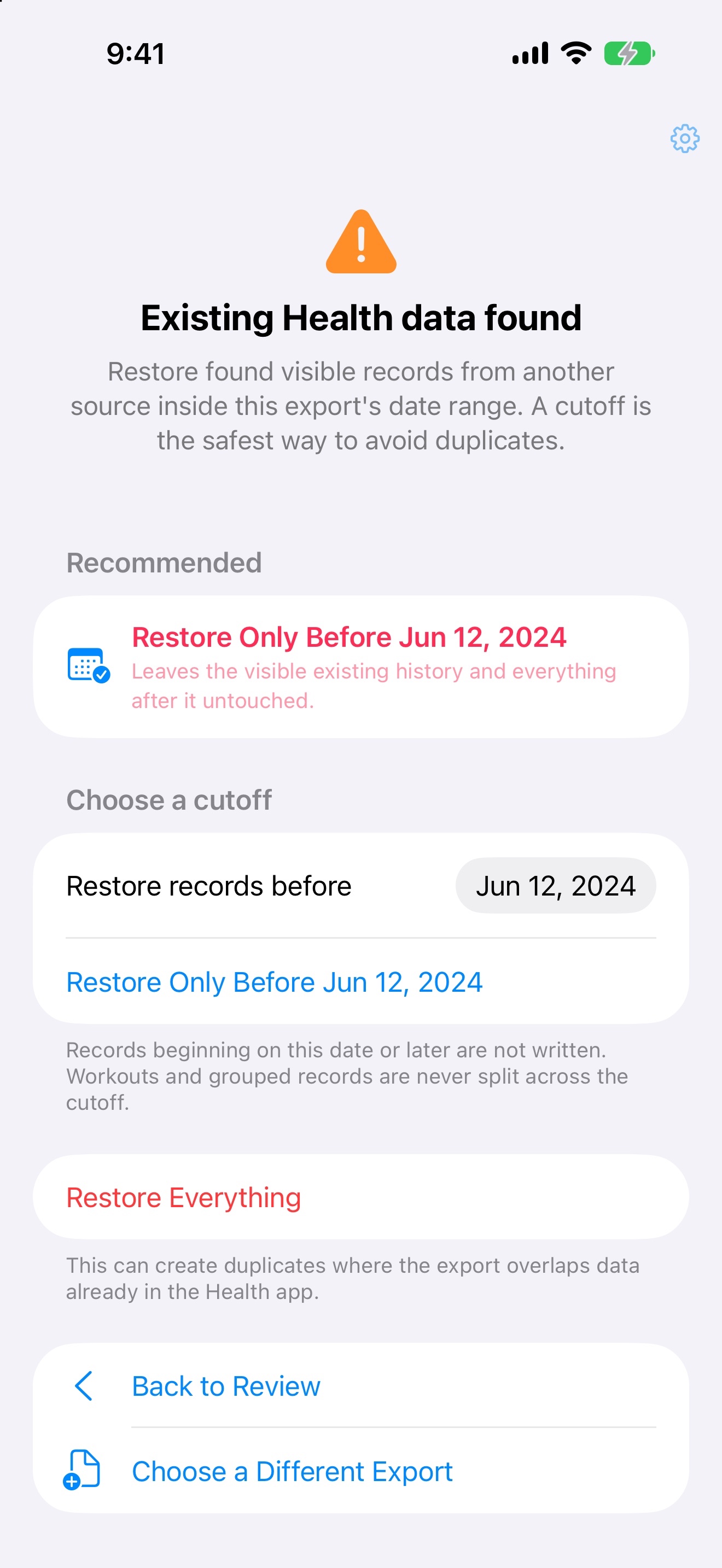
Review the overlap information and choose the range to restore. A cutoff lets you restore older records before a chosen date. Restore Everything includes all eligible records in the export, so read its overlap warning carefully.
The cutoff excludes records starting on that date or later. Workouts and grouped records that cross it are not split.
A missing overlap result is not proof that Health is empty: read access may be unavailable. Check your existing history in Health yourself. Restore does not guarantee a duplicate-free merge with records already there.
Step 04
Unlock Full Restore and keep the app open
When your selected range contains writable records, continue to restore. If you have not bought Full Restore, review the one-time price in Apple’s purchase sheet and confirm only when you are ready.
Already purchased with this Apple Account? Open the app’s settings and use Restore Purchases to recover access to Full Restore. This restores your purchase, not your health records.
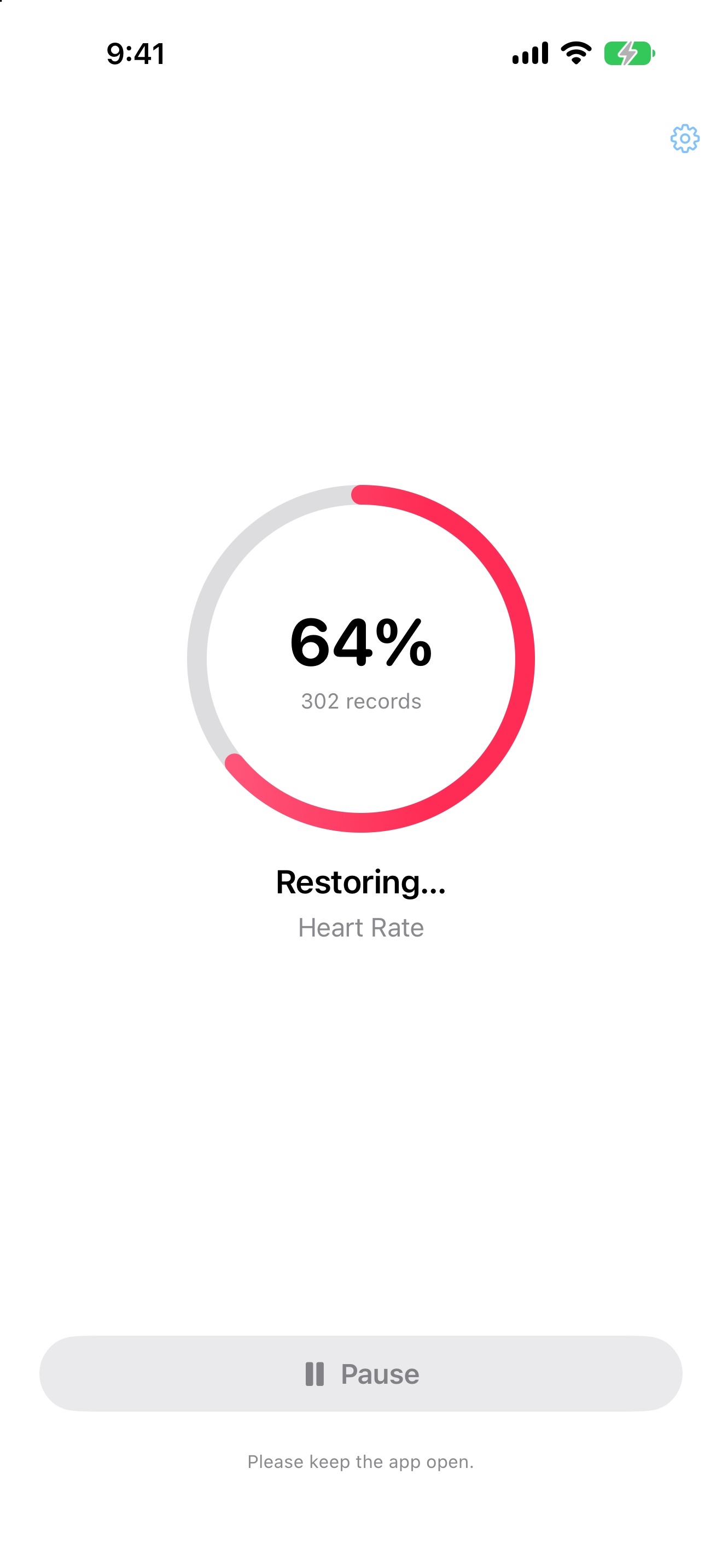
Keep Restore open in the foreground while it writes to Health. For a large export, connect your iPhone to power. Use the app’s pause and resume controls if you need a break; continuous importing in the background is not supported.
Step 05
Check the report, then check Health
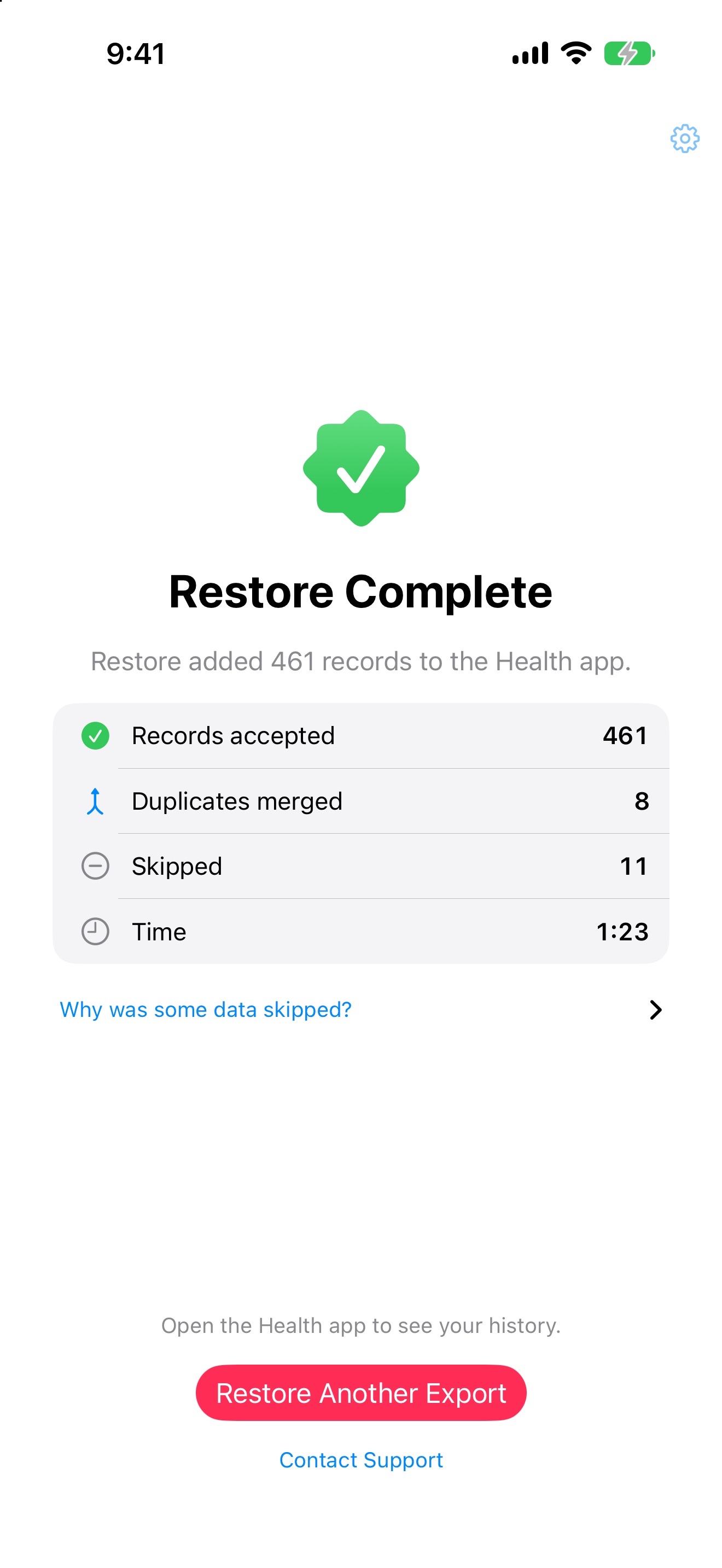
Read the completion report: Records accepted, Duplicates skipped and Skipped show what happened to the records you selected. Then open Health and check a few dates and data types you expected to restore.
Not every record in an export can be written back. Permissions, unsupported types, invalid records, the selected date range and Apple’s write restrictions can all affect the result. Keep the original ZIP after the restore.
Common questions
Can I import export.xml directly?
No. Choose the original ZIP created by Apple Health’s Export All Health Data action. Health Data Restore expects that archive, not an extracted export.xml file or folder. Keep the original ZIP intact.
Can I restore a Health export on a new iPhone?
Yes, if you have an existing Health export ZIP. Transfer it securely to Files on the destination iPhone, then follow this guide. Check for history already synced to Health before restoring. Importing the ZIP is separate from iCloud Health sync and does not extract an iPhone backup.
Do I need to restore an export if Health syncs with iCloud?
Usually not. With iCloud sync for Health turned on, your history syncs to any iPhone signed in with the same Apple Account, so check the Health app first. Restoring an export is for history that isn’t there, such as records from an iPhone that never synced Health to iCloud, or from a different Apple Account. Restoring a period that has already synced can create duplicates. Apple explains how Health data is stored in iCloud.
Can I restore without a Health export ZIP?
No. Health Data Restore imports records from an existing export. It cannot recover data that is not in that file, or extract a device or iCloud backup.
Are workout routes restored?
Yes, when your export includes them. Each route is saved with its workout if you allow Restore to write workout routes when you review Health access. GPS points without a time or with accuracy worse than 50 metres are left out. Routes that Health doesn’t accept are listed under Why was some data skipped? in the completion report.
What can’t be restored?
Restore 1.0.2 skips these types, along with ECG recordings. Some are restricted by Apple; others are not supported by this version of Restore. Before you pay, the free preview shows which records in your export can’t be restored.
- Activity, goals and calculated metrics
- Activity Summary, Atrial Fibrillation Burden, Average Walking Heart Rate, Breathing Disturbances During Sleep (Apple), Estimated Workout Effort Score, Exercise Minutes, Move Minutes, Nike Fuel, Sleep Duration Goal, Stand Hours, Stand Minutes, Walking Asymmetry Percentage, Walking Steadiness (Apple), Workout Effort Score and Wrist Temperature During Sleep (Apple)
- Health notifications and alerts
- Audio Exposure Event, Environmental Audio Exposure Event, Headphone Audio Exposure Event, High Heart Rate Event, Hypertension Event, Infrequent Menstrual Cycles, Irregular Heart Rhythm Event, Irregular Menstrual Cycles, Low Cardio Fitness Event, Low Heart Rate Event, Persistent Intermenstrual Bleeding, Prolonged Menstrual Periods, Sleep Apnoea Event and Walking Steadiness Event (Apple)
- Health profile details
- Activity Move Mode, Biological Sex, Blood Type, Date of Birth, Fitzpatrick Skin Type and Wheelchair Use
- Clinical records and medications
- Allergy Record, Clinical Note Record, Condition Record, Coverage Record, Immunisation Record, Lab Result Record, Medication Dose Event, Medication Record, Procedure Record, User-Annotated Medication Concept, Verifiable Clinical Record and Vital Sign Record
Will it recreate every Fitness ring, award and workout detail?
No. Restore cannot promise a complete recreation of Apple’s Fitness history. It can only write records and workout details supported by HealthKit and present in your export. Check the preview and the completion report for limitations.
Can it handle a large export of several gigabytes?
Yes. Restore reads the ZIP in small pieces instead of loading it all into memory. It keeps a private copy of the export on your iPhone, so allow free storage of about the ZIP’s size plus 2 GB; the app warns you when space runs low. Keep your iPhone on power and Restore in the foreground. If a restore stops, open Restore again and choose Resume Restore: it reuses the same date range and skips work that already finished.
Can I undo a restore?
Yes. In Restore, tap the gear icon, then Delete Restored Data. This permanently deletes every record Restore wrote to Health and leaves data from Apple Watch and other apps untouched. If deletion stops, you can resume it. If you reinstalled the app, choose and scan the same export first.
How much does Health Data Restore cost?
Downloading the app, scanning your export and previewing it are free. Restoring records requires Full Restore, a one-time in-app purchase of USD 9.99 in the US. Apple’s purchase sheet shows the price in your country before you confirm. There is no subscription.
Does my export leave my iPhone?
The app scans the ZIP and writes eligible records on your device. Arctic Studios does not receive your export or health records. If you use iCloud Drive or another service to transfer the file, that service handles the transfer under its own terms.
What if my ZIP cannot be selected or scanned?
Check that it is the original Health export ZIP, has finished downloading in Files, and is not an extracted folder. Make sure your iPhone has free storage. If the problem persists, contact support with the error message, iOS version and app version — not the export itself.
Start with a free scan.
See what is in your export before deciding to restore it.
Download on the App StoreNeed a hand? Contact Arctic Studios support.
Health Data Restore is independently developed by Arctic Studios LLC and is not affiliated with, sponsored by, or endorsed by Apple Inc.